Mastering Forge: Connecting Claude to Forge’s MCP Server
In this article, we will set up a connection between Forge and Claude Desktop using Forge’s MCP (Model Context Protocol) server capabilities.
The AI module in Forge allows MCP-compatible clients, such as Claude Desktop, to connect directly to Forge and access its exposed tools. Through these tools, AI assistants can browse the address space, read current and historical data, write values, and call OPC UA methods without requiring custom integrations.
During this tutorial, we’ll be using the following products:
- Prosys OPC UA Forge
- You can download an evaluation version through the request form.
Setting up the AI Module
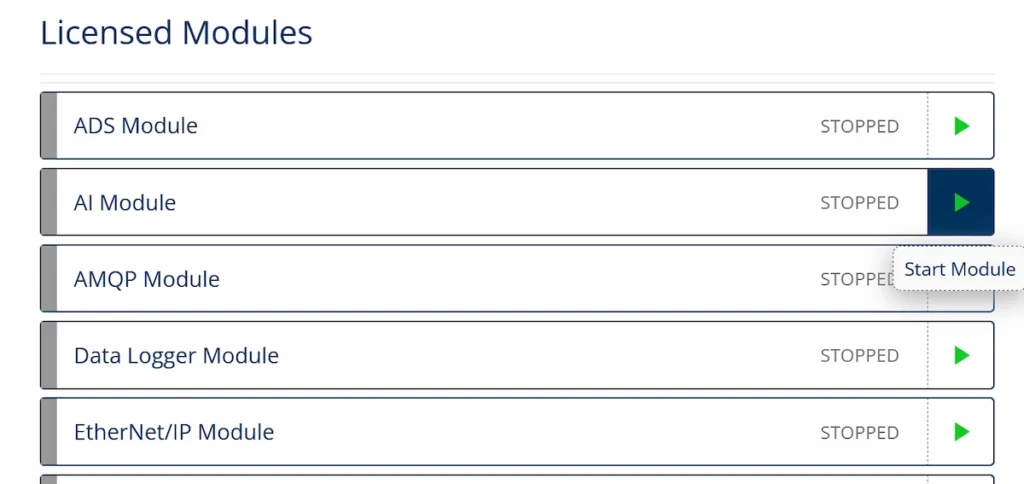
1. Let’s begin by starting the AI module from Forge’s dashboard.
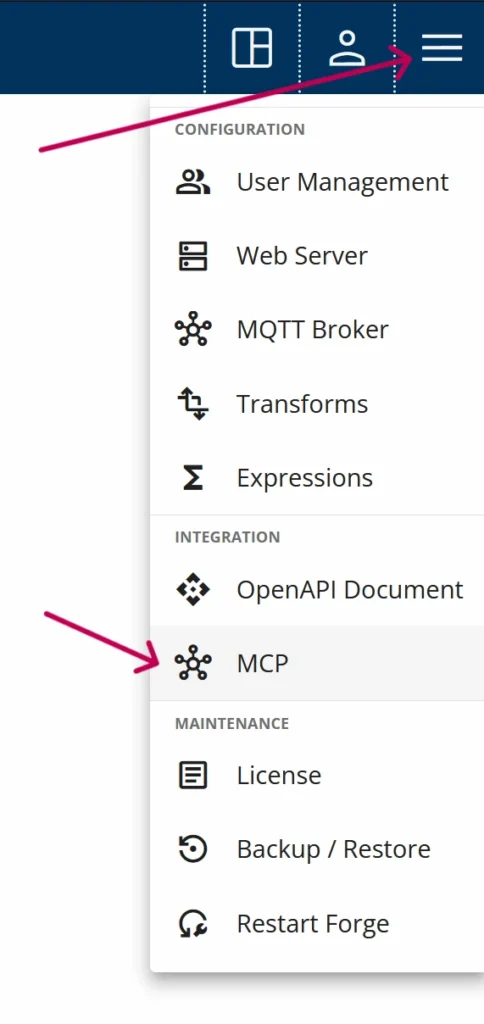
2. Next, from the top-right menu, navigate to the MCP Tool Groups page.
3. This page contains all the MCP tool groups available to the AI. Currently, it includes only the OPC UA tool group, which provides functionalities such as Browse, Read, Write, and Call. Enable the OPC UA tool group.
Now that the MCP tool group is enabled, Forge will expose a set of tools that the AI can use.
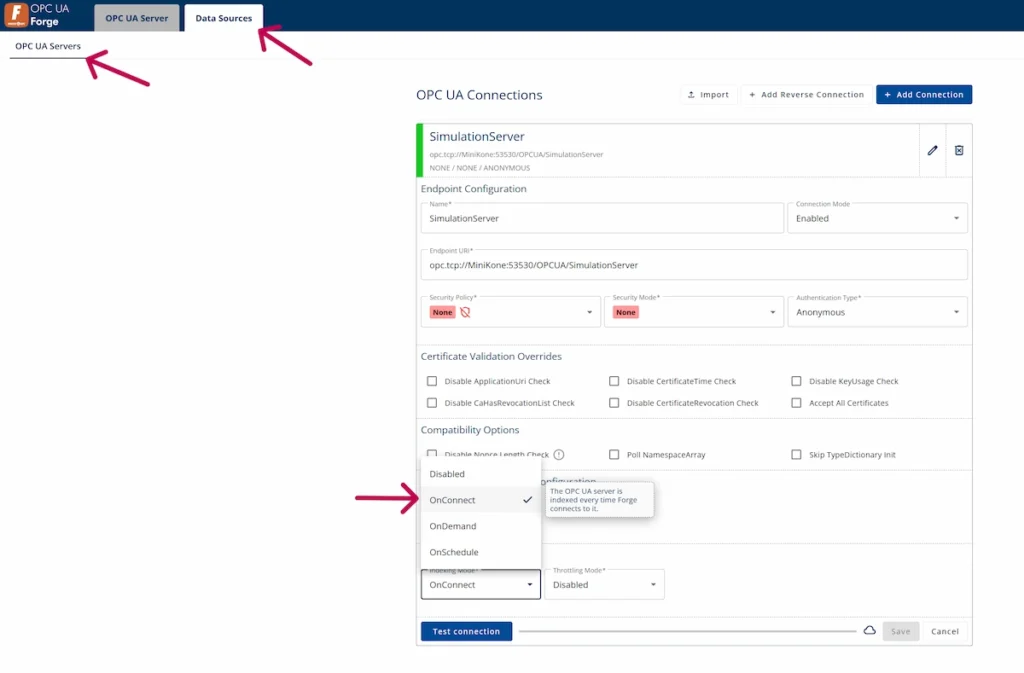
By default, the MCP server exposes only Forge’s own OPC UA Server. To expose remote OPC UA servers connected to Forge to Claude, you must enable indexing for those servers.
In the OPC UA Servers connection settings, set Indexing Mode to OnConnect. When the connection is established, the remote server will be indexed, allowing the MCP server to expose the data available on that server.
Configuring Claude Desktop
To create a connection to the local Forge MCP server you need the following:
- Claude Desktop app
- Node.js installed
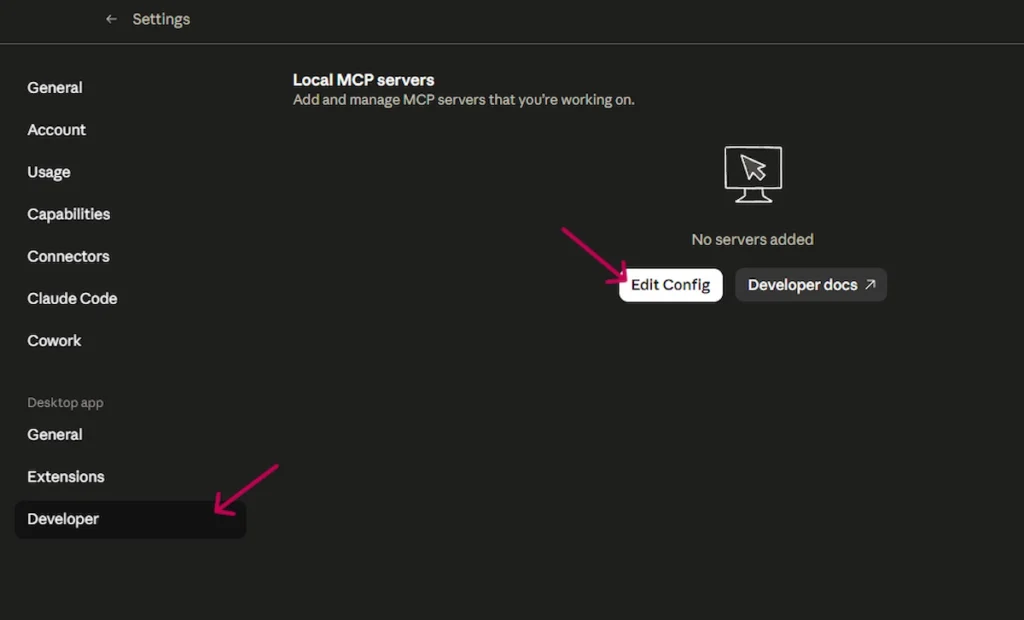
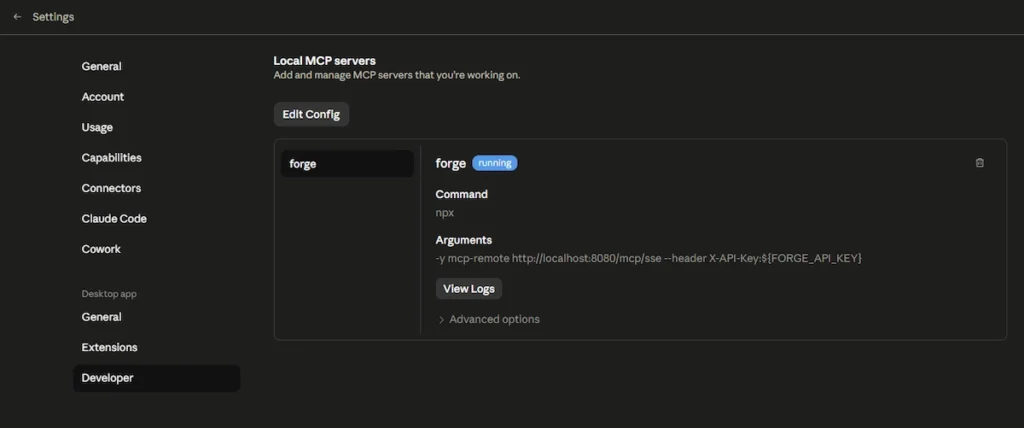
1. Start by opening the Claude Desktop settings. Then, navigate to the Developer tab and click Edit Config.
2. Open the claude_desktop_config.json file and replace its contents with the following snippet. Before doing so, generate a new Forge API key and replace YOUR_API_KEY placeholder with that key.
If you need guidance on generating an API key in Forge, refer to the Mastering Forge #13 tutorial.
{
"mcpServers": {
"forge": {
"command": "npx",
"args": [
"-y",
"mcp-remote",
"http://localhost:8080/mcp/sse",
"--header",
"X-API-Key:${FORGE_API_KEY}"
],
"env": {
"FORGE_API_KEY": "YOUR_API_KEY"
}
}
}
}
3. After that, fully restart the Claude desktop app and the Forge MCP connection should be working.
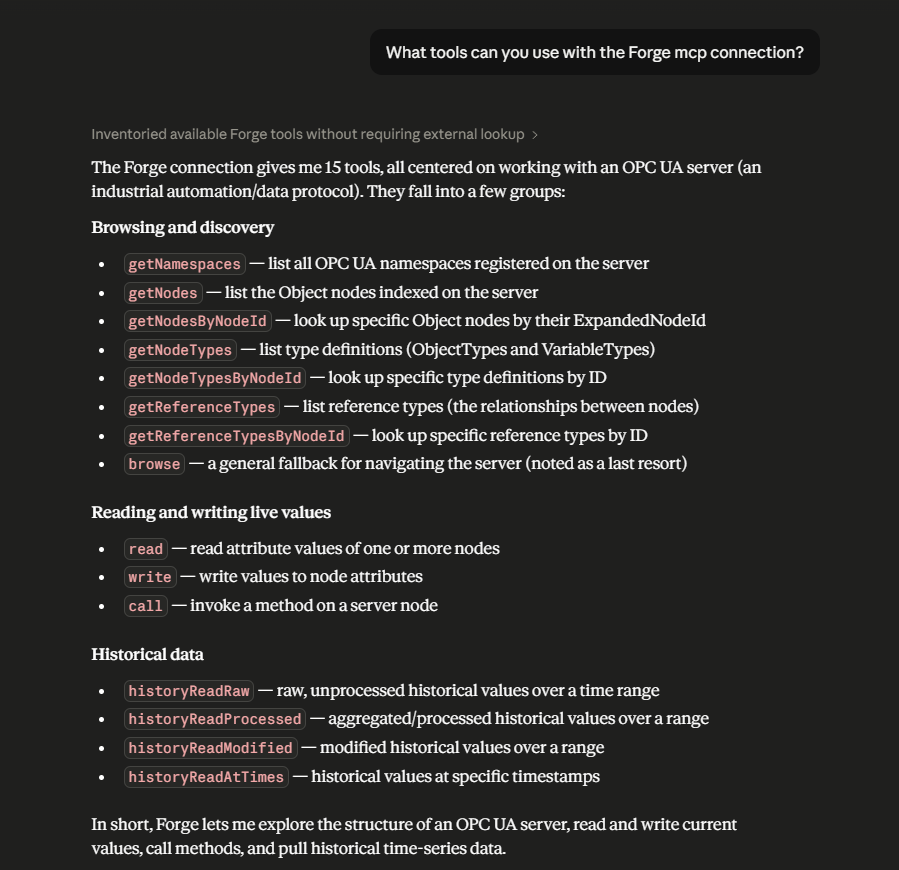
4. Now we can test the MCP connection for example by asking what tools can Claude use.
Recap
This wraps up this article of the Mastering Forge series. Here’s a quick recap of what we did:
- Enabled Forge’s AI module and OPC UA tool group.
- Configured Claude Desktop to connect to Forge though MCP.
- Verified the MCP connection using a simple prompt.
If you want to learn more about Forge and its capabilities, you can request a detailed introduction by emailing sales@prosysopc.com or using our contact form. We’d be delighted to provide tailored information about Forge that aligns with your interests and requirements.
Jere Jaakkola
Software Engineer
Email: jere.jaakkola@prosysopc.com