
Run Prosys OPC UA Simulation Server Headless and in Docker
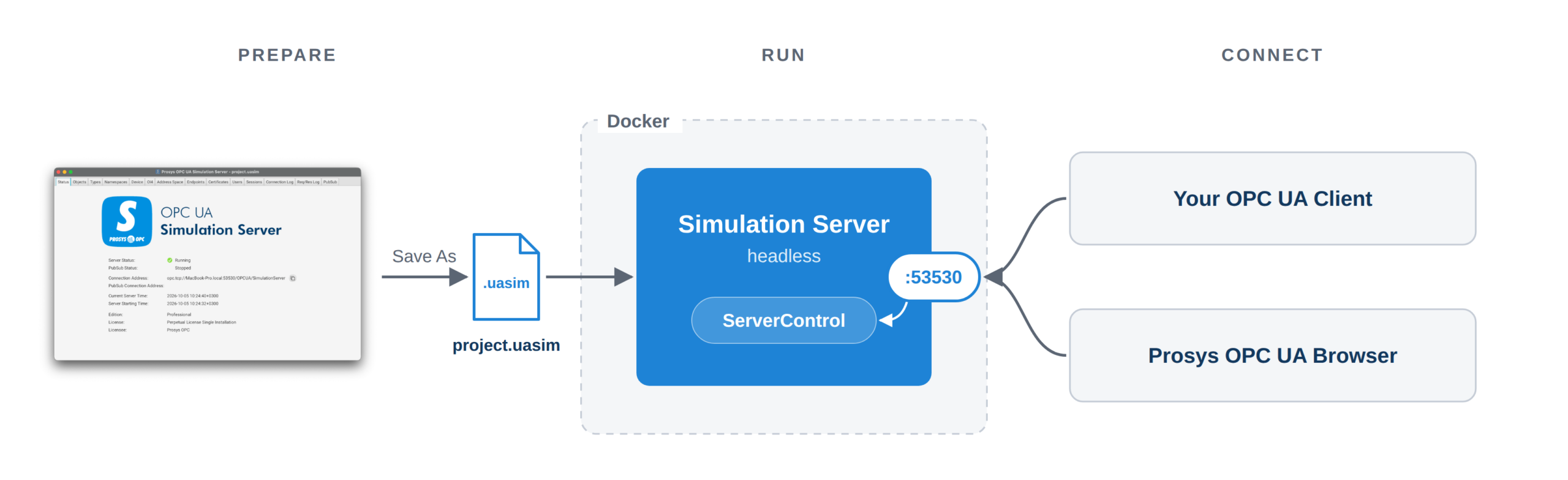
Prosys OPC UA Simulation Server 2026.2.0 adds a headless mode and a container image, so the server can run on a build agent, a shared test machine or in Kubernetes. This makes it easy to use in automated tests and CI/CD pipelines.
This guide covers:
- Preparing a Project on the desktop
- Starting the headless server in Docker
- Connecting with and without security
- Licenses, certificates and saved state
- Controlling playback and simulation over OPC UA with the ServerControl Object
What you need
- Prosys OPC UA Simulation Server 2026.2.0 or later, to create the Project
- Prosys OPC UA Browser, to check the server and call its methods
- Simulation Server Docker Image package for your Docker host:
docker-amd64for Intel/AMD,docker-arm64v8for ARM, including Apple Silicon Macs - Docker (Engine or Desktop)
- Professional or Evaluation license for Simulation Server
The Professional Bundle includes both Simulation Server and OPC UA Browser. For evaluation or commercial licenses, contact sales@prosysopc.com.
Get the container image
The image is distributed as a download. Get the Docker Image package from the Simulation Server download page and unpack it. It contains the image, the launcher scripts for Linux/macOS and Windows, and the user manual.
Prepare a Project on the desktop
The headless server takes its configuration from a Project file that you create in the desktop application. Any Project works: the default server, a replica of a real server, or one with Playback configured.
- Configure the server on your desktop: import NodeSets, add simulations, add playback CSV files if you use Playback, and set the port and security settings.
- Save the Project with File > Save As…, for example as
myproject.uasim.
![Save As dialog over OPC UA Simulation Server UI; filename project.uasim in folder Luukas (Simulation Server project file).] ,](https://prosysopc.com/wp-content/uploads/Screenshot-2026-09-30-at-92413-1024x681.png "Screenshot 2026-09-30 at 92413 - Prosys OPC - Prosys OPC")
The Project is a single file that stores everything that affects server behavior, including the playback CSV files and security settings, so it works on any host.
Start the headless server
The quickest way is the launcher script in the package. It loads the image, makes the server available on port 53530 and runs the server in the foreground. Give it your license and, optionally, your Project. If you have a hostname bound license, make sure that the docker container hostname matches that of the license being used.
On Linux/Mac OS:
export SIMSERVER_LICENSE=/path/to/license.lic
export SIMSERVER_PROJECT=/path/to/myproject.uasim
export SIMSERVER_HOSTNAME=<"your-license-hostname"> # only for hostname-bound licenses
./bin/simulation-server-docker.sh
On Windows (PowerShell):
$env:SIMSERVER_LICENSE = "C:\path\to\license.lic"
$env:SIMSERVER_PROJECT = "C:\path\to\myproject.uasim"
$env:SIMSERVER_HOSTNAME = <"your-license-hostname"> # only for hostname-bound licenses
powershell -ExecutionPolicy Bypass -File bin\simulation-server-docker.ps1
Without a Project the server starts with default settings. The launcher keeps the server certificate in the package's pki folder, and the fixed SIMSERVER_HOSTNAME lets it reuse the same certificate on every run.
When the server is up, the log prints a line that scripts can wait for:
SERVER READY endpoints=[opc.tcp://your-license-hostname:53530/OPCUA/SimulationServer]Arguments after the script name go to the server. For example, if your Project uses a port other than 53530, add --port 53530.
Run it with docker run
The image also runs directly with docker run, in Compose or in Kubernetes. Load it once:
docker load -i docker-image/prosys-opc-ua-simulation-server-2026.2.0-38-image.tarThen start it:
docker run --hostname "your-license-hostname" --rm -p 53530:53530 \
  -v "$PWD/license.lic:/license/license.lic:ro" \
  -v "$PWD/myproject.uasim:/project/myproject.uasim:ro" \
  prosys-opc-ua-simulation-server:2026.2.0-38 \
  --headless --license /license/license.lic --project /project/myproject.uasim
Each run starts fresh from the Project with a new server certificate, which suits repeatable test runs. To keep state, see Persisting state between runs below below.
The desktop installation takes the same options: start it with --headless to run it without the UI (on Windows add -console to see the output; on macOS start it with java, as shown in the user manual).
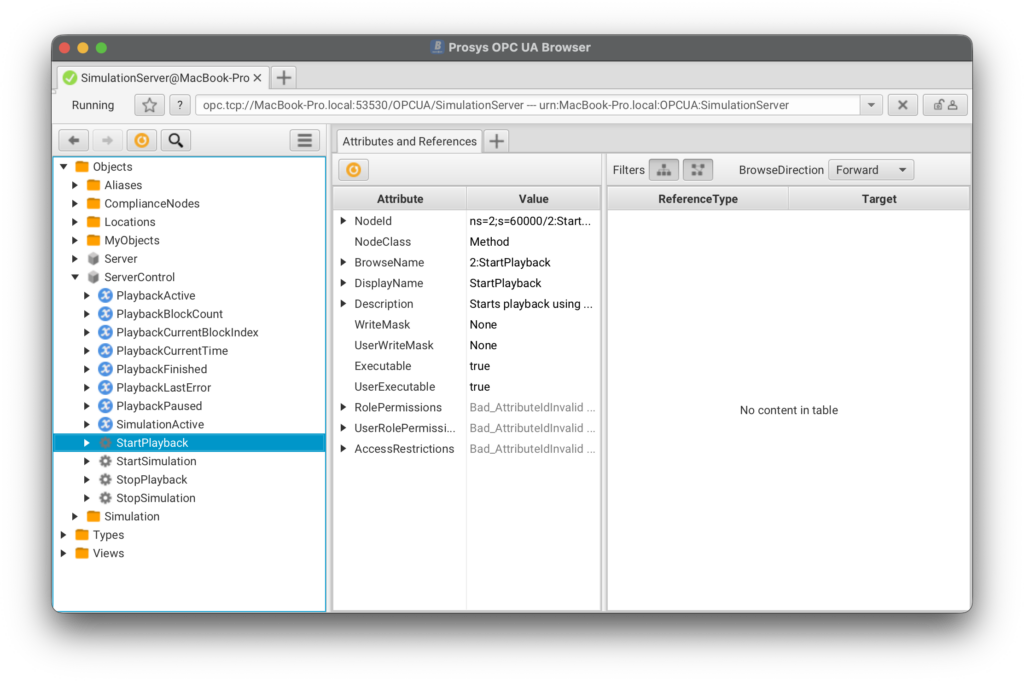
Connect with OPC UA Browser
Connect to opc.tcp://localhost:53530/OPCUA/SimulationServer and browse the address space. The security mode you pick decides whether the server has to trust your client first:
- Security mode None connects right away. Use it when you don't need security, for example on a local test machine.
- Sign or Sign & Encrypt needs the server to trust the client's certificate. The desktop asks you to accept the client; headless, start the server with
--trust-all-certificates(-T) instead:
./bin/simulation-server-docker.sh -T-T trusts any client certificate that passes validation, so expired or otherwise invalid certificates are still rejected.
To choose which clients get in, see Client certificates below.
Client certificates
For connections with Sign or Sign & Encrypt, there are three ways to get a client trusted:
- Trust clients one by one. Mount a writable certificate folder with
--pki-dir(the launcher does this for you). A rejected client's certificate lands inPKI/CA/rejected; move it toPKI/CA/certsto trust it. Use this for a shared test server. --trust-all-certificates(-T) trusts any client certificate that passes validation.--accept-all-certificates(-A) skips validation entirely, so expired and invalid certificates are accepted too. Use it only for disposable test runs on networks you control.
Persisting state between runs
For a long-lived server:
- Mount a volume for
--pki-dirand set a fixed--hostname, so clients keep trusting the same server certificate. - Add
--save-projectto save runtime changes back into the Project. The server writes into the Project's folder, so mount the folder writable.
docker run -d --name simulation-server --hostname "your-license-hostname" \
  -p 53530:53530 \
  -v "$PWD/license.lic:/license/license.lic:ro" \
  -v "$PWD/myproject:/project" \
  -v simserver-pki:/pki \
  prosys-opc-ua-simulation-server:2026.2.0-38 \
  --headless --license /license/license.lic --project /project/myproject.uasim \
  --pki-dir /pki --save-project
With the launcher, set SIMSERVER_SAVE_PROJECT=1.
Control playback and simulation over OPC UA
Simulation Server exposes a ServerControl Object under Objects. It contains Methods to start and stop Playback and value simulation, and Variables that show their current state.
Any OPC UA client can call them, including the client under test, so a test can subscribe first and start the playback afterwards.
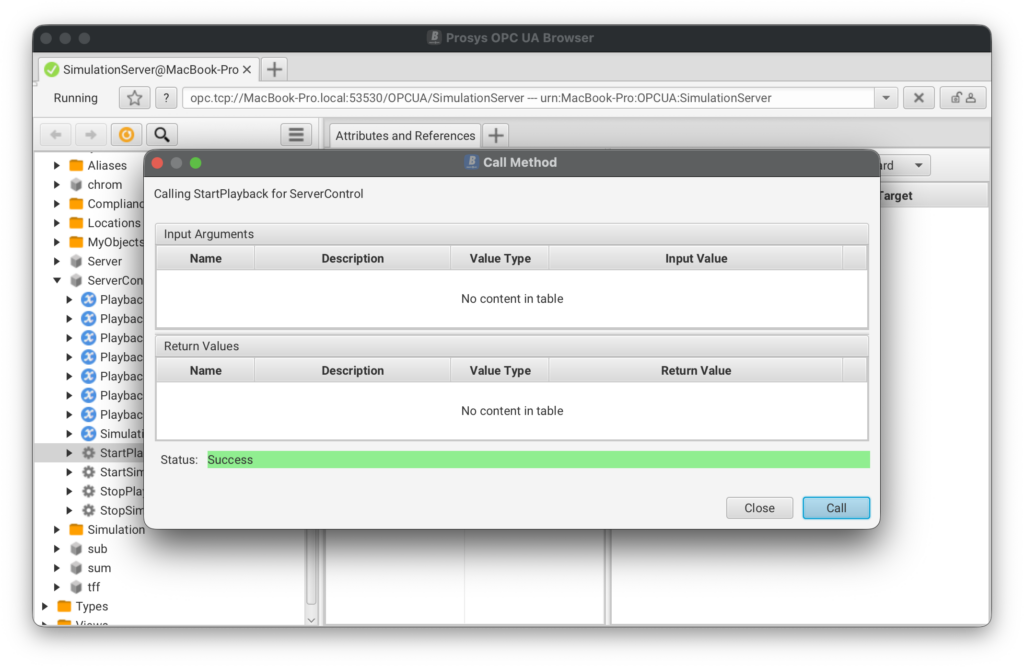
- In OPC UA Browser, expand Objects > ServerControl, right-click StartPlayback and select Call Method.
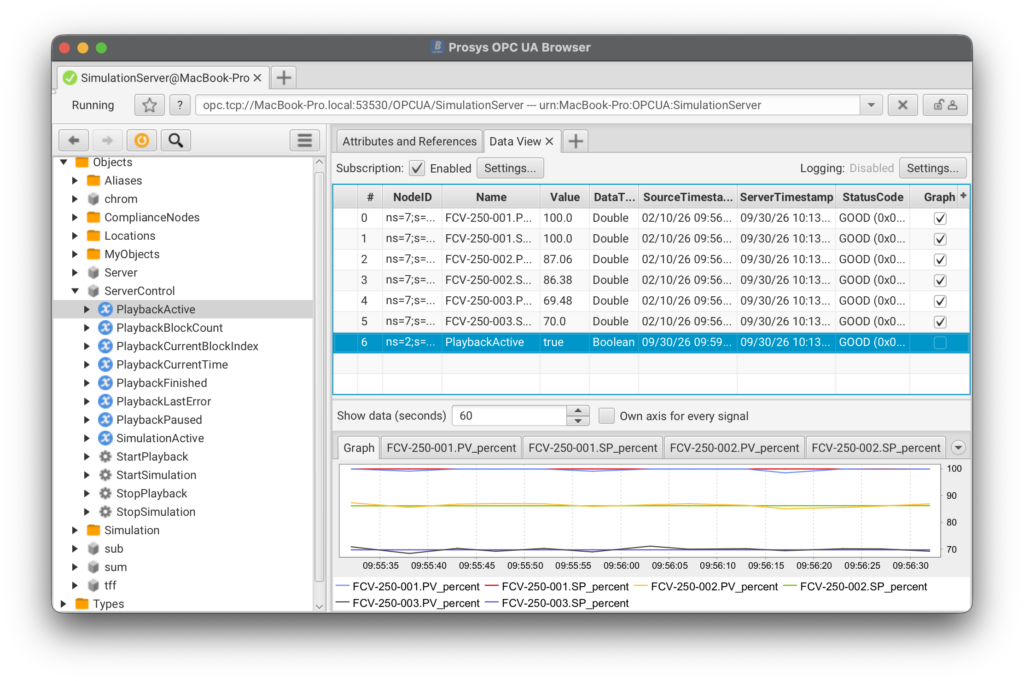
- Add PlaybackActive and one of the played-back variables to the Data View to follow the playback.
Start playback with the container
Add --playback to start the playback at startup, optionally with overrides such as --playback-speed 10 or --playback-original-time:
./bin/simulation-server-docker.sh --playback --playback-speed 2For a one-shot run, --playback-exit-when-finished exits the server after one playback run, with exit code 0 on success. On a server that untrusted clients can reach, add --no-server-control to hide the ServerControl Object.
Summary
Start with the default settings, and add Playback, certificates and saved state as you need them. For replaying recorded data, see Playback Real Data in Prosys OPC UA Simulation Server.
Feedback and comments are welcome.

Luukas Lusetti
Software Engineer
Email: luukas.lusetti@prosysopc.com