
Forge Tutorial: Transferring Data over HTTP
In this article, we’ll demonstrate how easy it is to use Forge’s HTTP Module to map real-world measurement data from an external REST API into OPC UA. With this module, you can fully customize your HTTP requests and either map or include OPC UA data in the payloads. This tutorial shows a use case where weather data is retrieved from a public API endpoint and mapped into Forge’s OPC UA nodes. The documentation of this API endpoint can be found here.
During this tutorial, we’ll be using the following products:
- Prosys OPC UA Forge
- You can download an evaluation version through the request form
- You can download an evaluation version through the request form
- Prosys OPC UA Browser
- You can download it through the product’s request form.
Create Nodes and HTTP Requester
At the first step, we’ll create the nodes which will receive the weather measurements at the end. After this, we’ll configure a Connection, which functions as a base configuration for the actual HTTP Requesters.
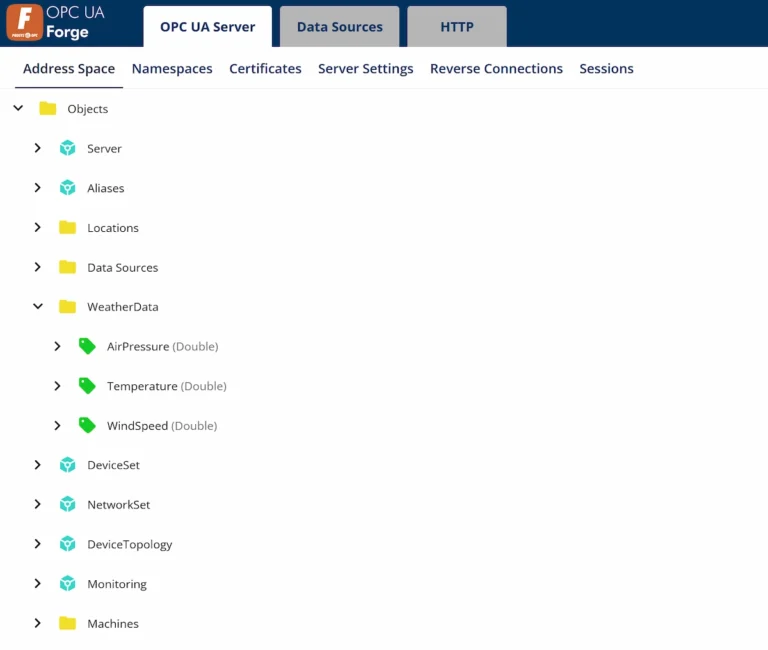
1. Navigate to Forge’s OPC UA Server’s Address space, create a folder named WeatherData and add three variables of datatype Double (AirPressure, Temperature, WindSpeed) as in the image below. You may read Mastering Forge #4 for a guide on how to create node instances.
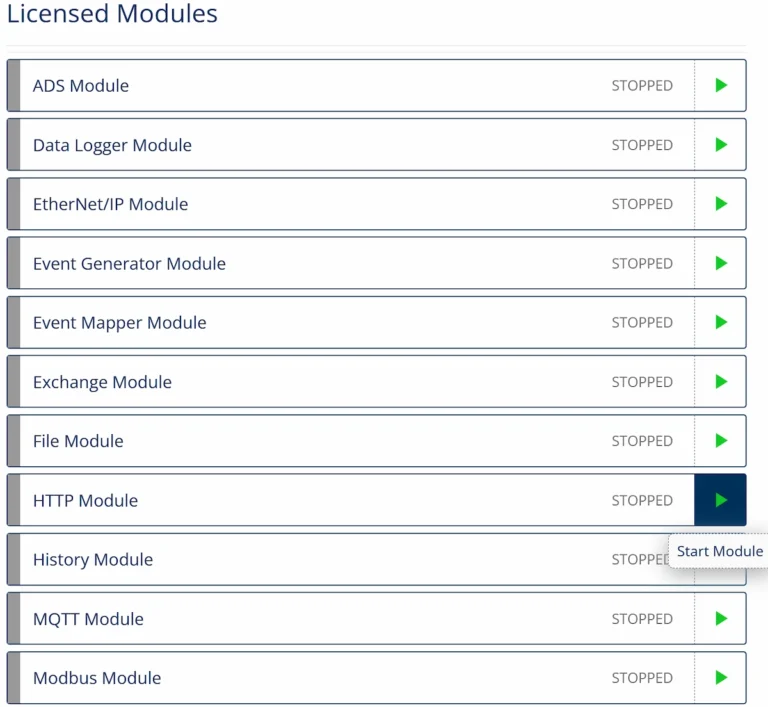
2. From Forge’s Dashboard, start the HTTP Module.
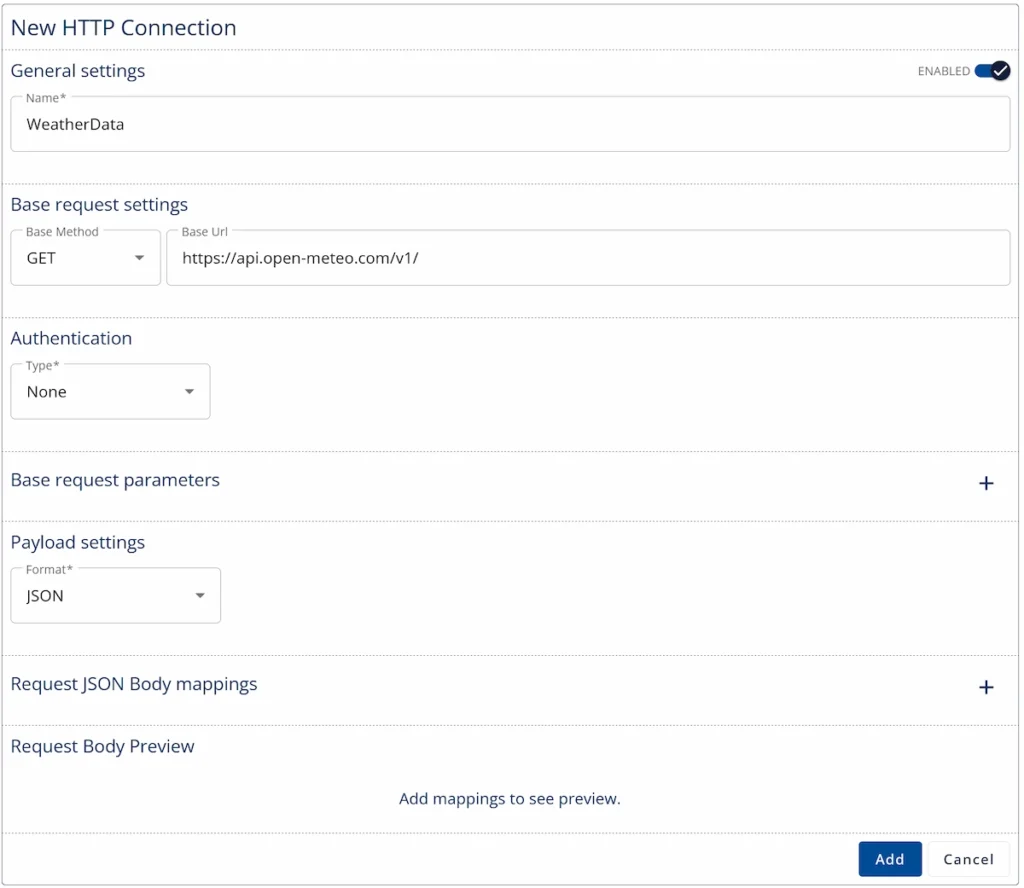
2. Navigate to the HTTP Module from the top bar, select the Connections tab and click Add Connection.

3. The Connection only requires the name and the Base Url of the API endpoint, which is in this example is https://api.open-meteo.com/v1/. After this, click Add.
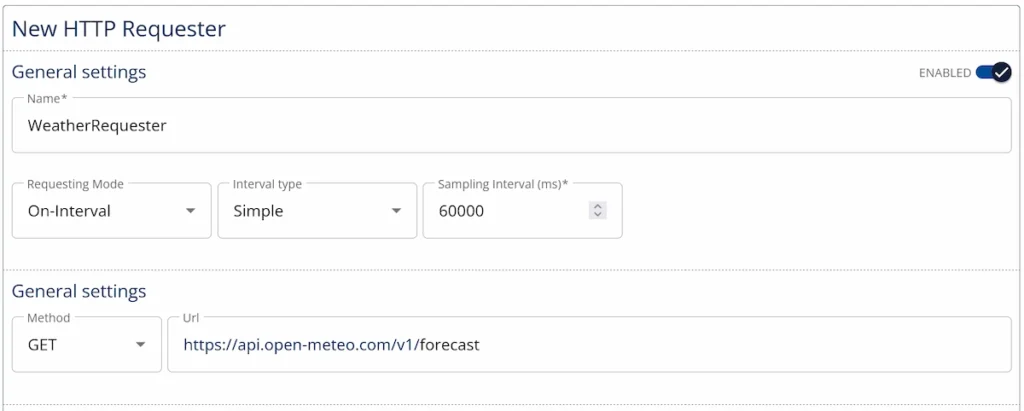
4. The next step is to configure the HTTP Requester. Navigate to the Requesters tab, and click Add Requester. If you have multiple Connections, the specific Connection needs to be selected first.

5.1. Since the configuration form is quite long for this HTTP Requester, it is split into multiple images. First, give it a name and then select the Collecting Mode to be On-Interval from the drop-down menu. The Sampling Interval can be set for example to 60 000 ms (1 minute) or higher in order to not spam the endpoint unnecessarily often. Finally, the Base Url of the previously configured Connection needs to be extended to form the full API endpoint, which in this case is extended with forecast.
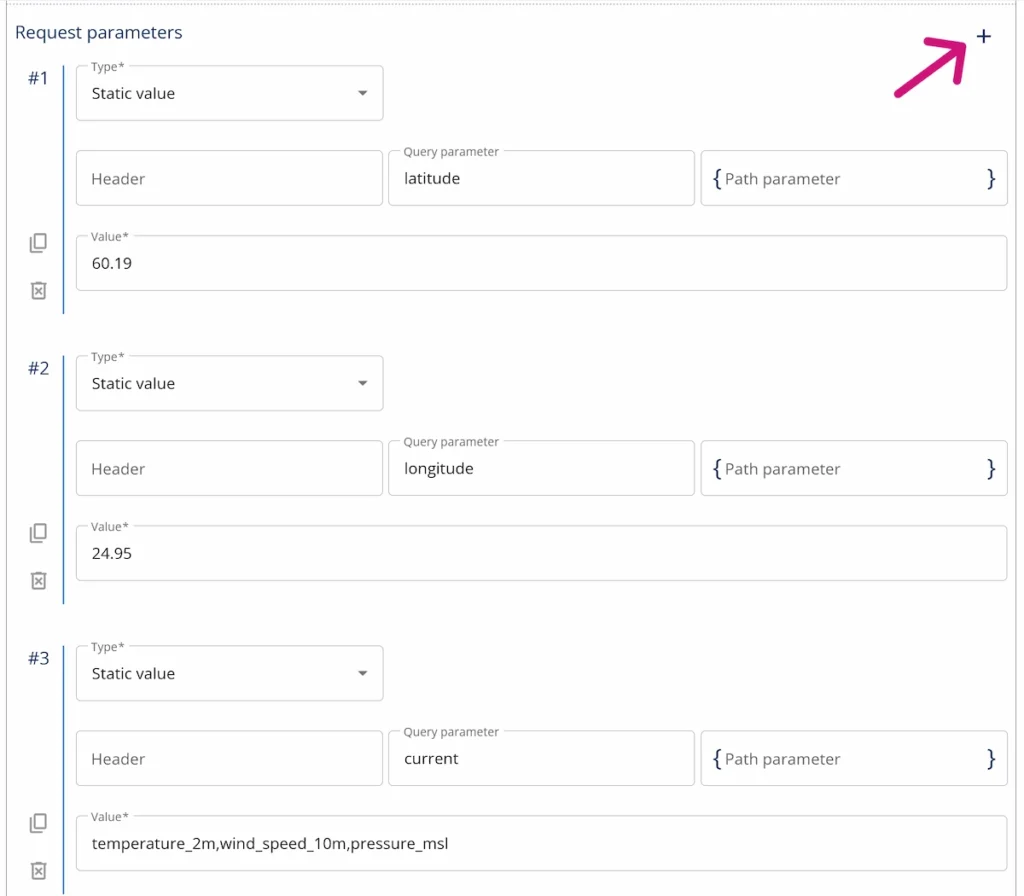
5.2. After this, we’ll add the query parameters to the Url. The image below shows how these are configured. Use the plus-icon to add more of them. These parameters are the global coordinates of the weather location as latitude and longitude, as well as a list of the measured variables as parameter current, which are temperature_2m,wind_speed_10m,pressure_msl. The coordinates below belong to Helsinki but you can decide the location of the weather measurements freely yourself.
With these query parameters, the sent requests will look like this: https://api.open-meteo.com/v1/forecast?latitude=60.17&longitude=24.94¤t=temperature_2m,wind_speed_10m,pressure_msl.
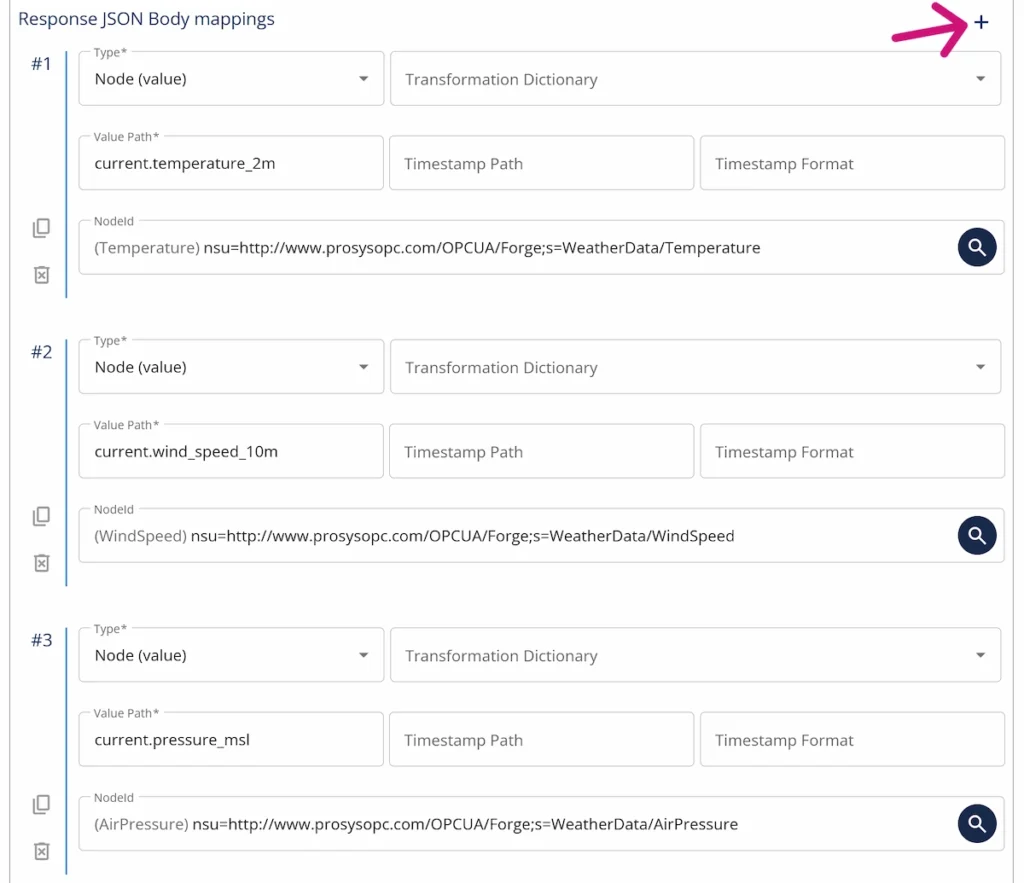
5.3. In the Response JSON Body mappings part, we’ll parse the JSON response of the API endpoint, and map the data it contains into the previously created Forge nodes. The response will look something like this:
					{
  "latitude": 60.16998,
  "longitude": 24.945206,
  "generationtime_ms": 0.061,
  "utc_offset_seconds": 0,
  "timezone": "GMT",
  "timezone_abbreviation": "GMT",
  "elevation": 7.0,

  "current_units": {
    "time": "iso8601",
    "interval": "seconds",
    "temperature_2m": "°C",
    "wind_speed_10m": "km/h",
    "pressure_msl": "hPa"
  },

  "current": {
    "time": "2026-04-21T09:45",
    "interval": 900,
    "temperature_2m": 14.2,
    "wind_speed_10m": 14.4,
    "pressure_msl": 1022.1
  }
}
You can click the plus-icon to add a mapping for each of the three measurements. Then, parse the JSON response in the Value Path field using dot-notation to extract the exact fields you want to use. Finally, select the nodes where you want to map the data by browsing the address space.
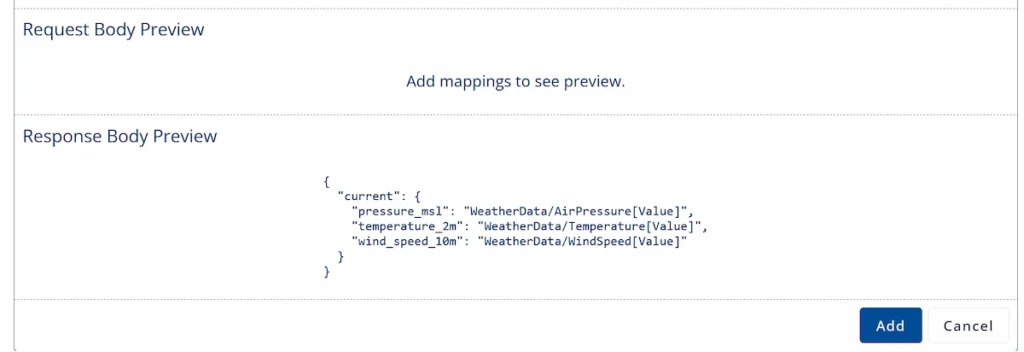
5.4. At the bottom of the form, you’ll see the preview of the JSON mappings. Click Add and the HTTP Requester is ready.
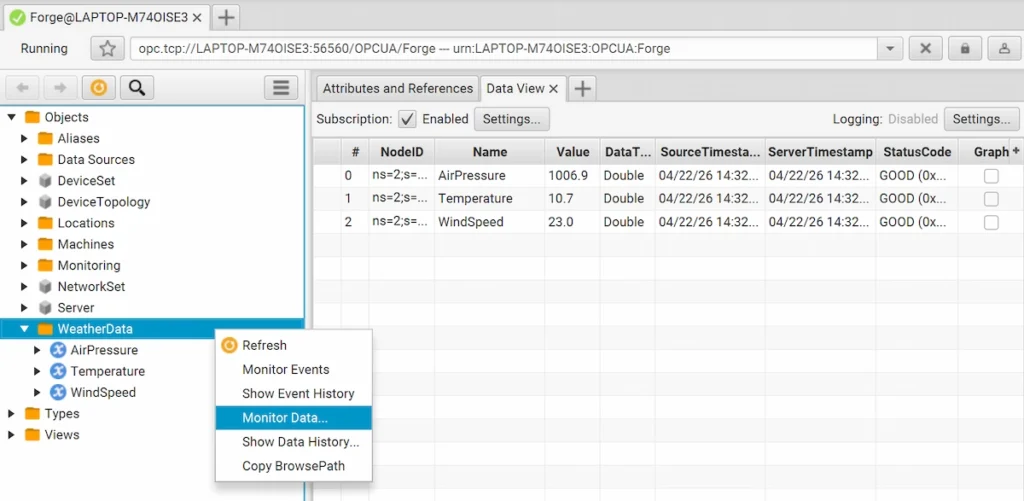
6. Finally, we can check from an OPC UA client, such as Prosys OPC UA Browser, that the created nodes have received the weather data.
Recap
This wraps up this article of the Mastering Forge series. Here’s a quick recap of what we did:
- Created nodes in Forge’s address space to represent the weather measurements.
- Created a HTTP Requester to retrieve this data from public weather API, and map it into the previously created nodes.
- Checked that the data was received using OPC UA Browser.
In order to keep this blog relatively simple, we didn’t showcase all features you can do with Forge’s HTTP Module. The Requesters handle all standard authentication methods, as well as the ability to include headers and path parameters. The requests can also work the other way around using the POST method, where you send data from Forge to the HTTP server. Finally, this module also allows you to create Custom API endpoints, which external HTTP clients can call to interact with Forge, but that we will cover in separate tutorial.
If you want to learn more about Forge and its capabilities, you can request a detailed introduction by emailing sales@prosysopc.com or using our contact form. We’d be delighted to provide tailored information about Forge that aligns with your interests and requirements.
Author Info

Artturi Korhonen
Software Engineer, Forge Team, Prosys OPC