
Prosys Forge is a great tool for connecting your OT layer with IT. Once you have created connections to your PLCs and other industrial devices, they can all be accessed from one place: Forge’s own OPC UA server. From there, the data can be read by OPC UA clients, published over MQTT, AMQP or HTTP, or logged to databases.
Setting up one of these devices can be done quickly by creating the connection, defining the tags, modelling it in OPC UA, and finally mapping the variables. With a hundred such devices, doing this by hand becomes tedious and error-prone. The Forge public API can automate it, but that requires knowing the endpoints and their payloads, and an environment where you can run the script.
Forge 2026.2 addresses this challenge with three features:
- Web of Things (WoT) onboarding. WoT is a W3C standard for describing devices. The device vendor provides a Thing Description (TD), a JSON file that lists the device’s data points and how to read them over Modbus, S7COMM, EtherNet/IP or BACnet. Forge reads the TD file directly, so the register map no longer has to be typed in from the device manual.
- Device Templates. A device template holds the settings and tags shared by all devices of one model, and it can be created from a TD file. New devices are created from it by giving only the name and connection details of each, one by one or in bulk from a list or CSV file. The devices stay linked to the template, so a template change is applied to all of devices in one save.
- Mapping Templates. A mapping template stores how the variables of an OPC UA type map to a device’s tags. Added to a device template, it gives every new device an instance of your type with the mappings already in place.
The rest of this post walks through importing the TD file for a Modbus-based Siemens energy meter, modelling one device, and creating additional devices with the model and mappings already in place.
Step 1: Turn the vendor’s TD into a Device Template
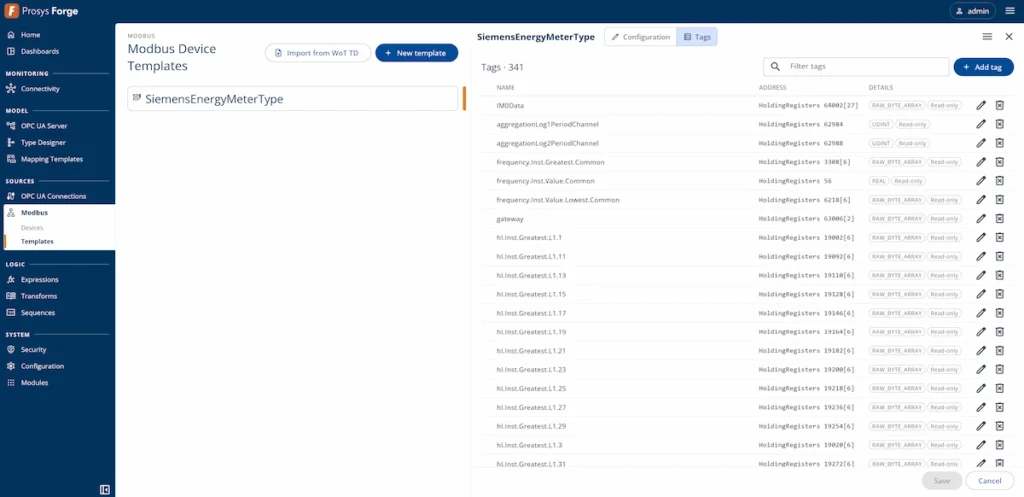
Start the module of your connector type such as Modbus and navigate to its Templates tab. From there, select Import from WoT TD and enter the TD file provided by the device vendor. In this example, we have a real physical energy meter provided by Siemens that included the TD file. Note that Device Templates can also be created manually or from existing device instances in Forge if you do not have a TD file. The image below shows the list of tags that the Device Template has.
Step 2: Model the first device by hand
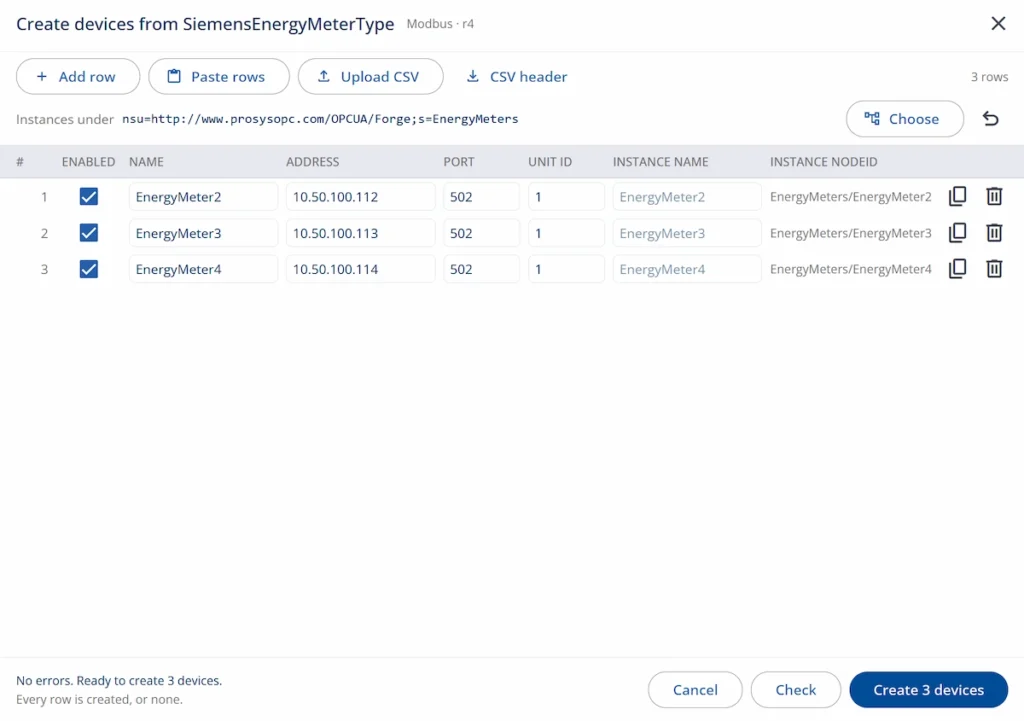
After creating the template, you can create device instances from it by right-clicking the template and selecting Create Devices. This opens a form where you only need to provide the basic connection parameters for each device instance. These could easily be pasted or imported from a CSV file.
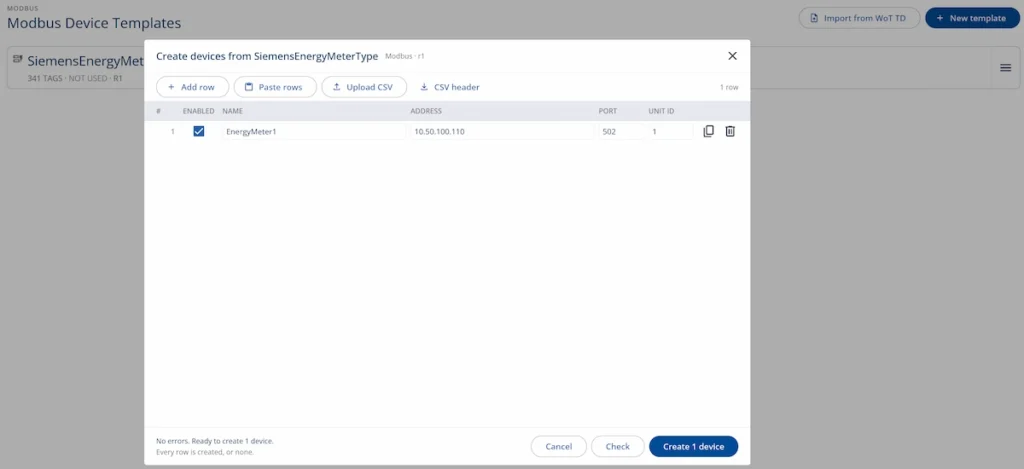
In this example, we want to harmonize the energy meter data by organizing its structure and removing unnecessary tags. To do this, we first create a single device, define its model, and map the model to the source data. We can then apply the model and mappings to a Device Template, allowing us to import properly modeled devices in bulk.
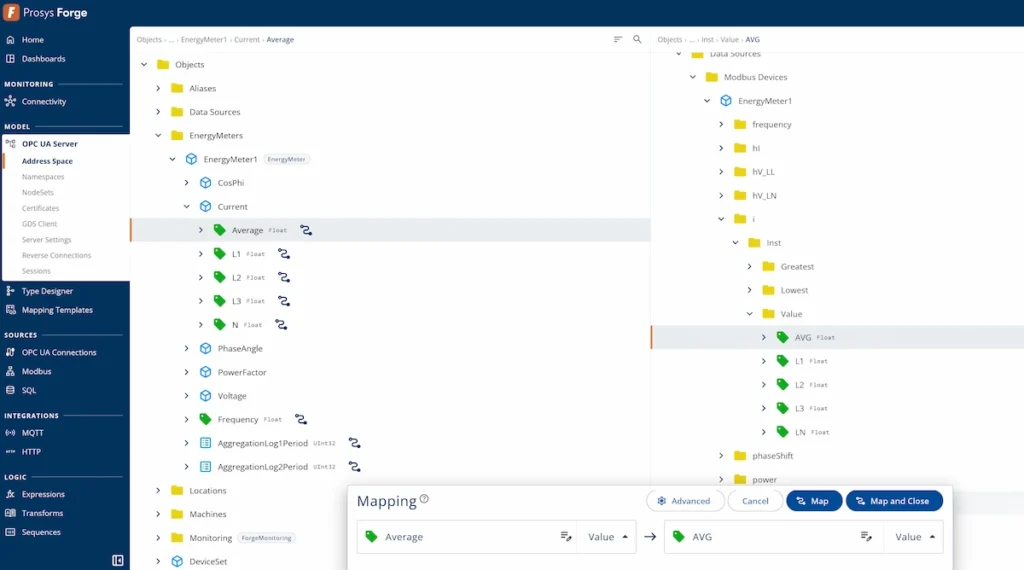
Creating a custom model in Forge’s address space is straightforward. Nodes can be created manually in the UI, imported from NodeSets, created through Forge’s public API using JSON or CSV, or created using the MCP Server. The image below shows our harmonized energy meter model on the left, mapped to the raw source data structure on the right. The model removes unnecessary tags and uses clearer names and a more logical structure to make the device data easier to understand.
Step 3: Turn the model into a type and save the mapping template
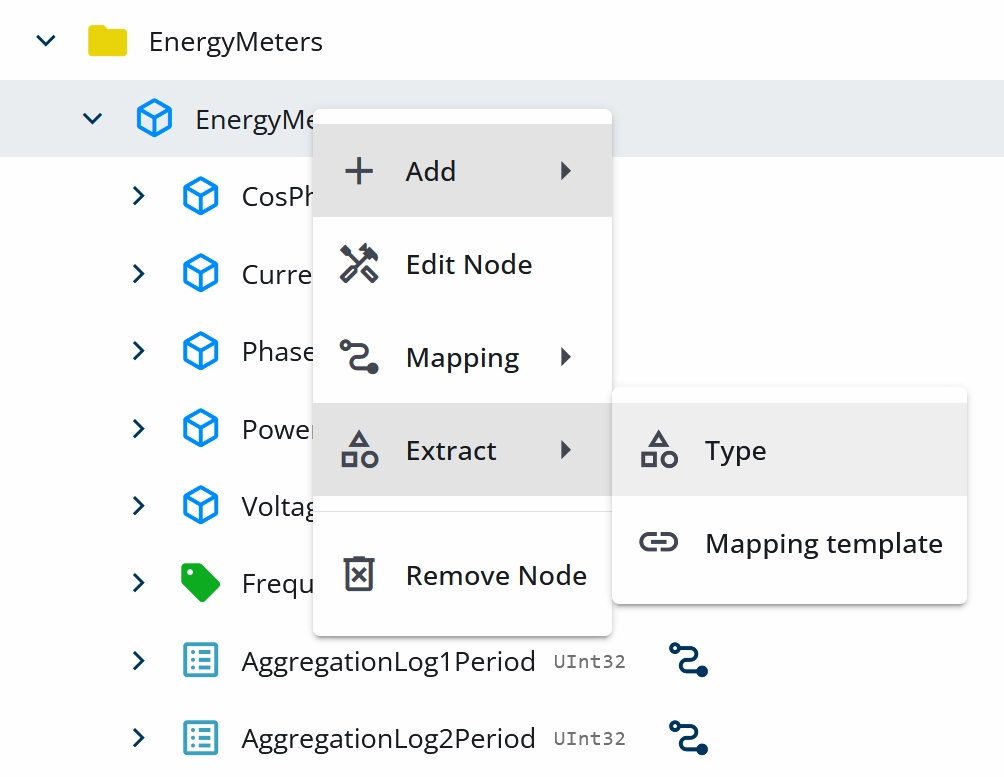
The next step is to right-click the EnergyMeter1 node, and select Extract -> Type. This opens a sequence of menus where we first extract the model into a reusable ObjectType, then convert the existing model into one, and finally save the mappings into a Mapping Template. For the first step, you will need to have an authored namespace in Type Designer where the type is saved. There is no need to change any settings in this step, meaning you may click Next for the first two steps and finally Create.
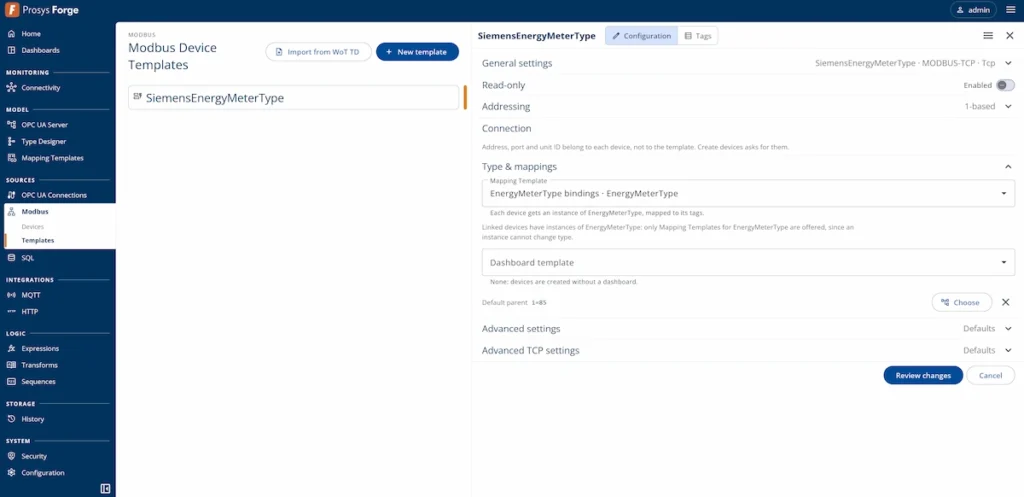
After this step has been done, return to the Device Template we had previously created. Go to Configuration at the top, and apply the Mapping Template. Each device created from the template now has its own mapped model in Forge’s address space.
Finally, open the form to create devices from the template as we did in Step 2. Select the root under which we want to create the device, in this case the EnergyMeters folder, and add as many devices as you need by simply giving their connection information.
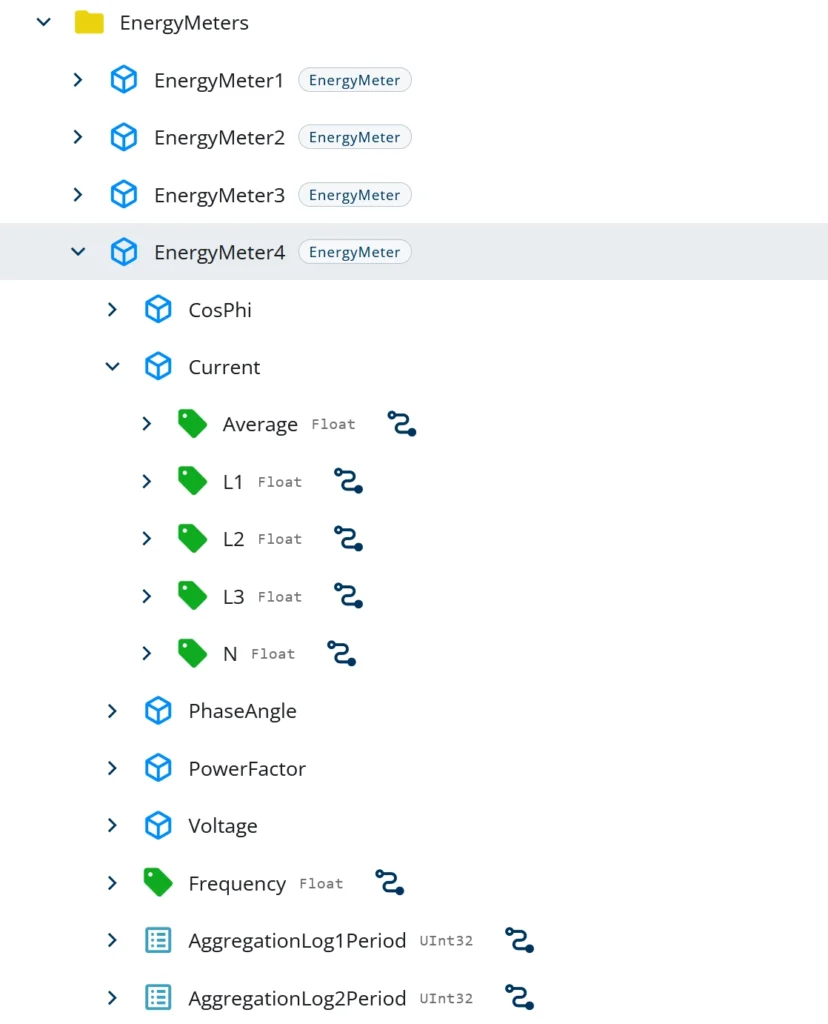
Once the devices have been created, you’ll find all of them from the address space view already fully modeled and mapped to the data sources.
Conclusion
Starting from version 2026.2, Forge lets you configure, model and map one device, then use that setup to create additional devices in bulk. The vendor’s TD provides the list of tags, while your OPC UA model gives the data a clear and consistent structure. Bringing these together in a Device Template lets you add devices with their models and mappings already in place, simply by providing their names and connection details.
For our Siemens energy meters, this means modelling and mapping once, then reusing that work for every additional meter. Shared settings remain manageable through the template, reducing repetitive configuration and helping keep devices consistent as the installation grows.
If you want to learn more about Forge and its capabilities, you can check these Forge resources or request a detailed introduction by emailing sales@prosysopc.com or using our contact form. We’d be delighted to provide tailored information about Forge that aligns with your interests and requirements.