
Forge MCP: Bridging AI and Industry
Building an industrial data pipeline in Forge involves several configuration steps: connecting devices, defining tags, modelling assets, mapping data, adding logic, setting up publishing and creating dashboards. With the Prosys Forge AI module, you can describe the result you want and let an AI assistant handle the configuration. The module exposes Forge’s functionality through an MCP (Model Context Protocol) endpoint, so AI assistants like Claude and ChatGPT can configure Forge, browse its OPC UA address space, and read, write and call nodes. You decide exactly what the assistant is allowed to see and change.
In this post, we use Claude Desktop and four prompts to build a complete pump integration:
- Modbus device connection
- OPC UA pump model with control logic
- MQTT Unified Namespace
- Operator Dashboard
The prompts are deliberately short and vague. They say what we want, not how to build it, so Claude has to make the decisions itself: which scaling factors to use, how to wire up the control logic, which MQTT settings make sense and how to lay out the dashboard. After each step, we point out the choices Claude made on its own.
You can also watch the entire integration process in action in our video demonstration.
During this demonstration, we’ll be using the following products:
- Prosys Forge
- You can download an evaluation version through the request form.
- Claude Desktop
- If you haven’t connected your AI assistant to Forge yet, you can follow our Forge MCP setup tutorial.
Step 1: Connect to Modbus
Prompt:
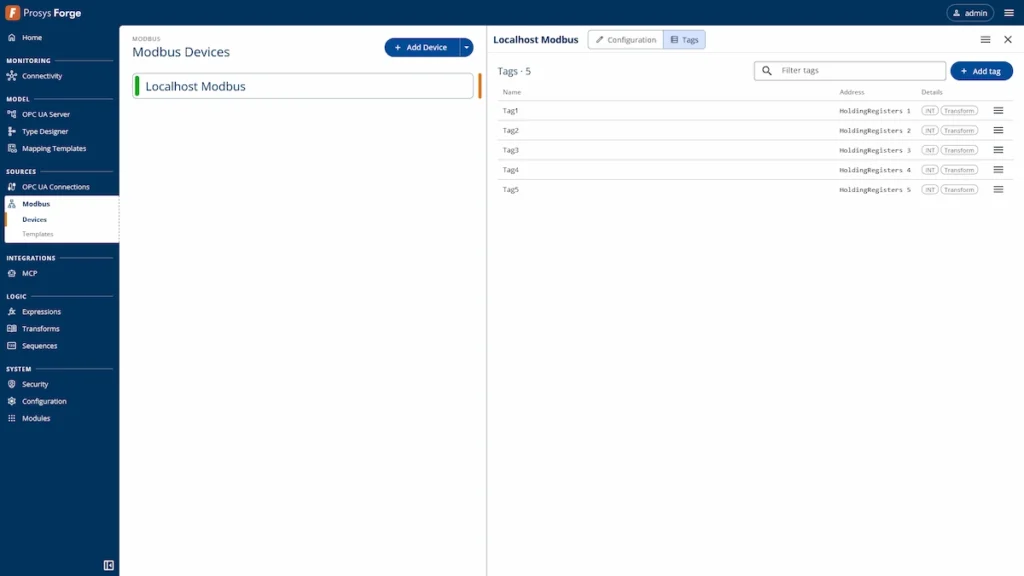
Using the Forge MCP, create a Modbus connection to localhost:502 and add five INT-type tags at addresses 1–5. Apply a different scaling factor to each tag.
Result:
Claude created Localhost Modbus with Tag1 to Tag5 on holding registers 1 to 5. Each tag reads an INT and has its own scaling transform. We didn’t specify the factors, so Claude picked a sensible spread, from 0.01 to 10.
Step 2. Model the pump and add logic
The pump model comes from our previous post, Forge Type Designer: Build and Scale Your System, where we used the new Type Designer to create PumpType with FlowRate and Speed variables, a SerialNumber property and Start and Stop methods. That post ended with the type in place but no data mapped to it and no logic behind its methods. This step picks up where it left off.
Prompt:
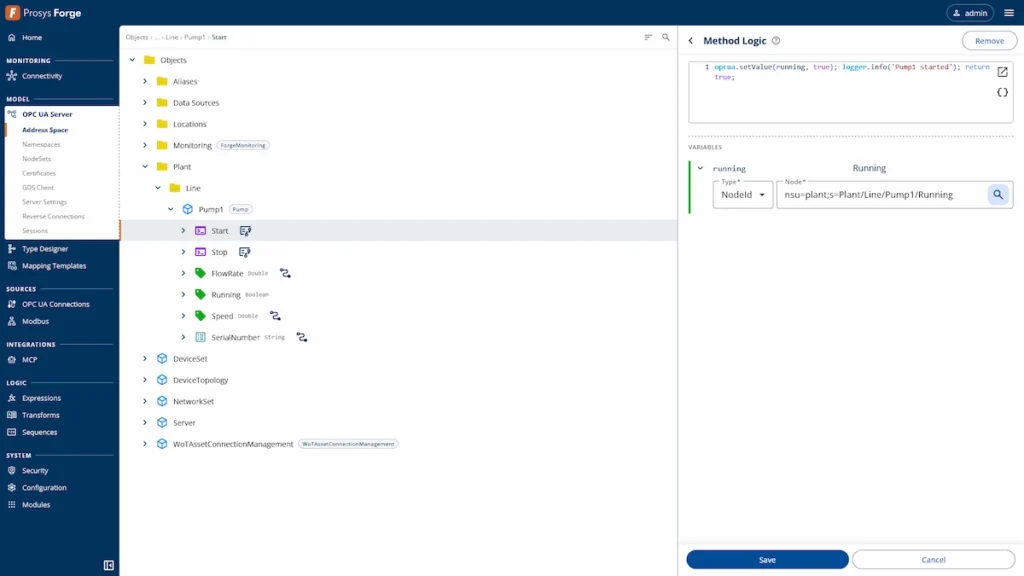
Create mappings between the Modbus tags and PumpType. Add a static SerialNumber and implement logic for the Start and Stop methods using Expressions to control data updates. Create an instance of PumpType under Plant -> Line. If the folders do not already exist, create them.
Result:
Claude created the missing Plant/Line folders and added a Pump1 instance of PumpType there, with the serial number PMP-2026-0001.
The interesting part is the logic. The Start and Stop methods set the pump’s Running flag. The FlowRate and Speed variables are mapped through Expressions that depend on that flag:
running == true ? flow : 0.0
While the pump is running, the variables follow the live Modbus values. When it’s stopped, they drop to zero. Claude built a working run interlock entirely in Forge, without touching the PLC.
The prompt only asked for Start and Stop logic built with Expressions. Claude worked out the details itself, from how the methods and data mappings tie together to the format of the serial number.
Step 3. Publish to a UNS over MQTT
Prompt:
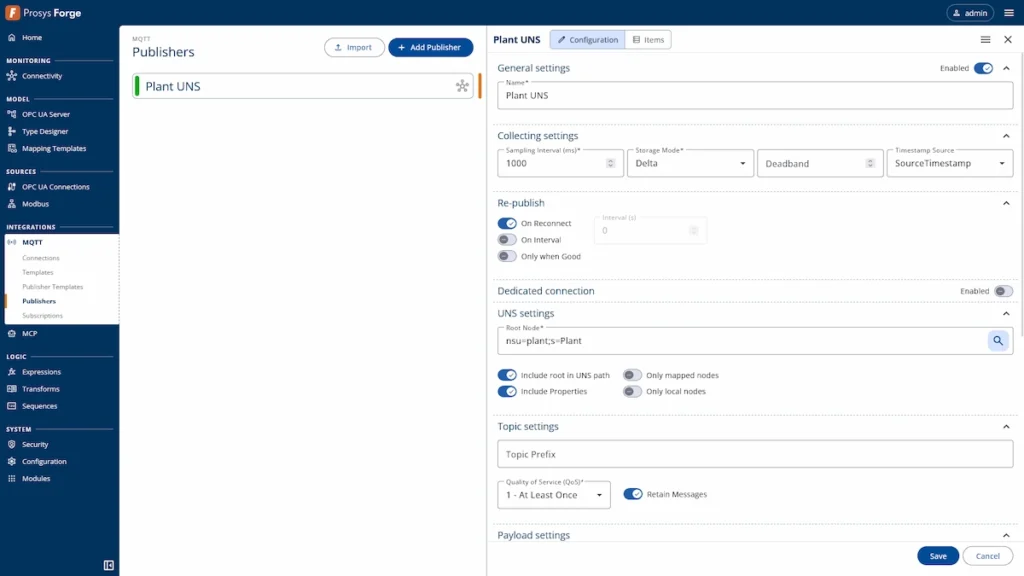
Create a MQTT connection to localhost:1883 and a UNS publisher where Plant is the root. Include properties.
Result:
Claude set up the Plant UNS publisher with Plant as the root. The prompt didn’t mention any MQTT settings, so Claude chose them itself: QoS 1, retained messages, and re-publishing on reconnect.
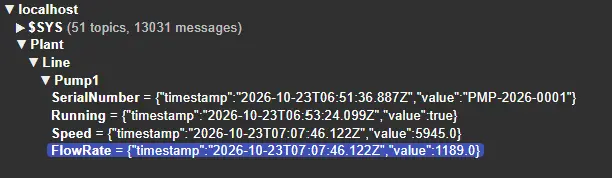
In MQTT Explorer, the topics mirror the address space (Plant/Line/Pump1/...), and each value arrives as JSON with a timestamp.
Step 4. Build an operator dashboard
Prompt:
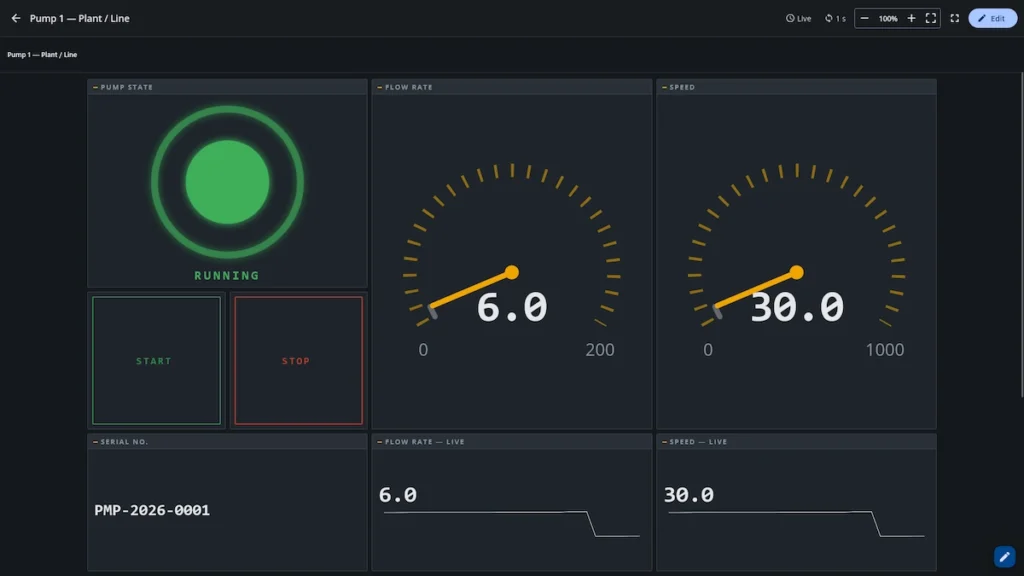
Create an industrial-style dashboard that displays the PumpType values and includes controls to invoke its Start and Stop methods.
Result:
The result is Pump1 – Operator Panel. It shows the run state, gauges and trends for flow rate and speed, the serial number, and START/STOP buttons. The prompt didn’t describe the layout, so the design choices were Claude’s, including asking the operator to confirm before the buttons call the pump’s methods. Press STOP and you’ll see the gauges drop to zero and the indicator go out, which is the step 2 logic at work.
You decide what the AI can access
The assistant can only do what you allow it to do. In Forge, access is controlled on three levels:
- Tool groups. The MCP module has two tool groups. OPC UA covers reading, writing and calling nodes, and Configuration covers reading and changing Forge configuration. Enable only the groups you need and choose which operations each one allows.
- Module access. For the Configuration group, you can set general permissions for all modules or override them per module. For example, you can let the assistant build dashboards while keeping your device connections read-only.
- User and API key permissions. Each MCP API key inherits its permissions from the user who created it, and you can restrict the key further. A key can never do more than its user.
This lets you give the assistant exactly the role you want, from a read-only helper that answers questions about live data to a full configuration assistant like the one in this demo. The Forge MCP setup tutorial shows where to find each of these settings.
Regarding configuration, everything Claude creates or modifies affects regular Forge configuration. You can review, edit or remove it in the Forge UI like anything you built yourself.
Recap
In this article, we used Claude and the Forge MCP endpoint to:
- Connect a Modbus device with scaled tags
- Model a pump in OPC UA with Start/Stop control logic
- Publish the plant hierarchy to an MQTT Unified Namespace
- Build a live operator dashboard
All of this came from four short prompts. Claude decided the details itself, while the permissions set in Forge defined what it was allowed to touch.
If you want to learn more about Forge and its capabilities, you can check these Forge resources or request a detailed introduction by emailing sales@prosysopc.com or using our contact form. We’d be delighted to provide tailored information about Forge that aligns with your interests and requirements.